How do I run a game?
Log into the game manager section of the game management app, and you will find a list of your Upcoming Games. When players book on your website, our booking system automatically imports the data into the app.
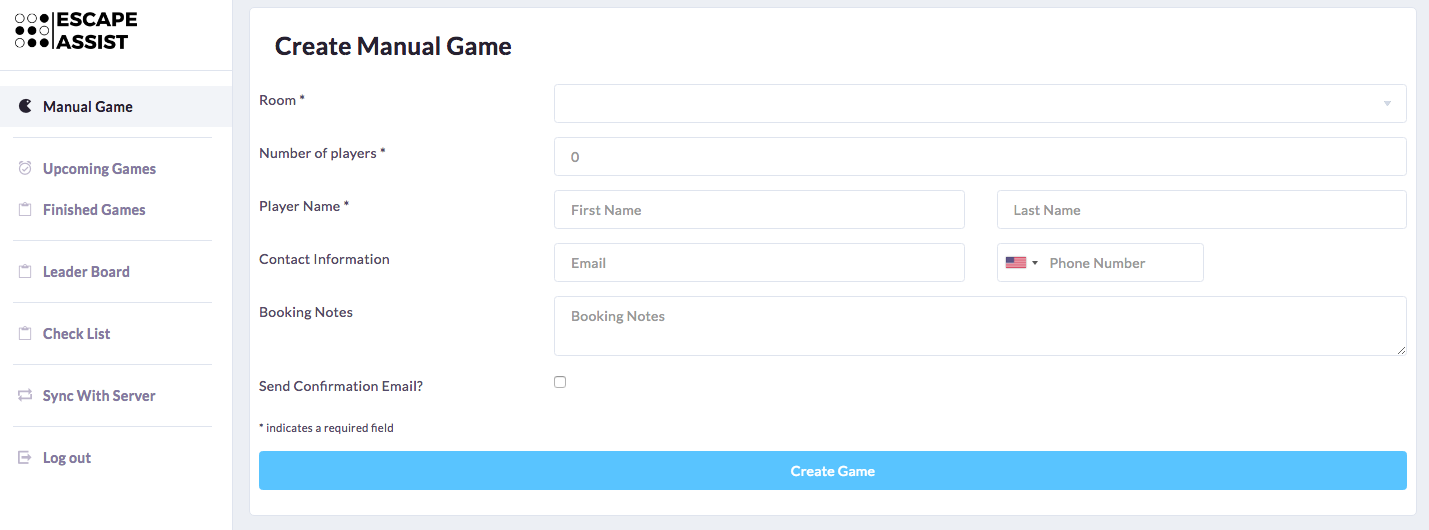
You can also manually input a game if you have a walk-in customer using the Manual Game button. Simply type in the player and payment information.
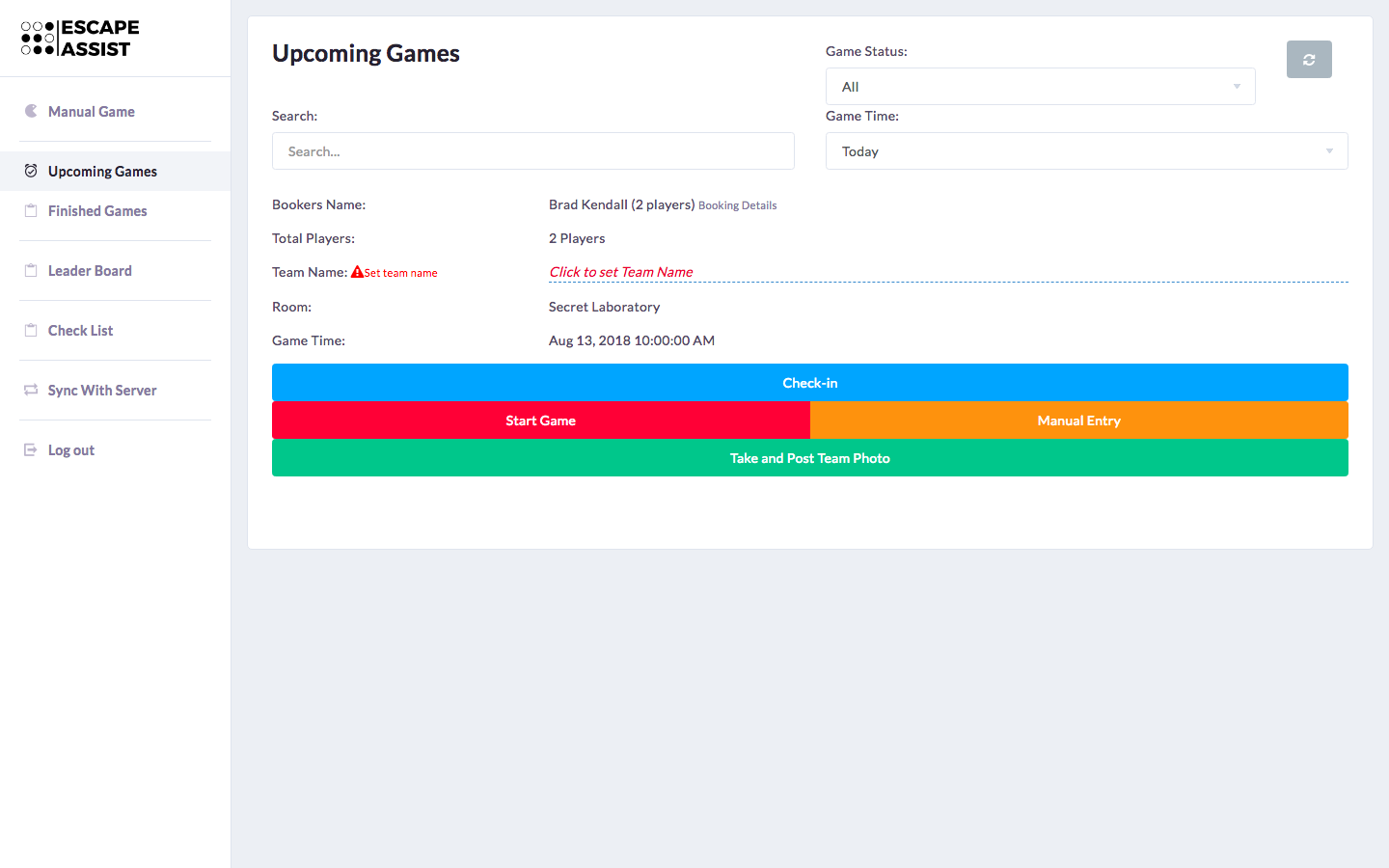
You will see booking details of the upcoming game, and the first thing you need to do is insert the team’s name. The team name will automatically be displayed on your In Game Display screen.
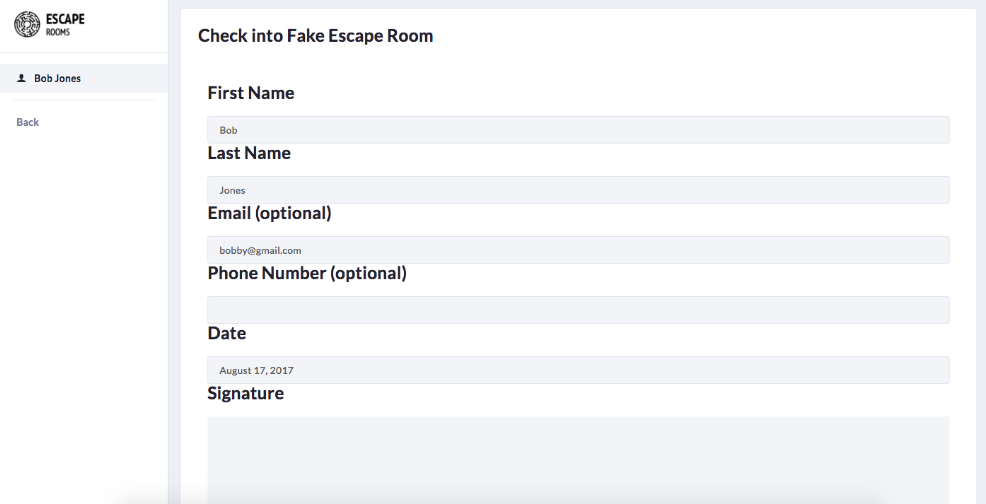
Next, click the “Check-in” button and have each player sign in by filling out their name, contact info, and signing the disclaimer.
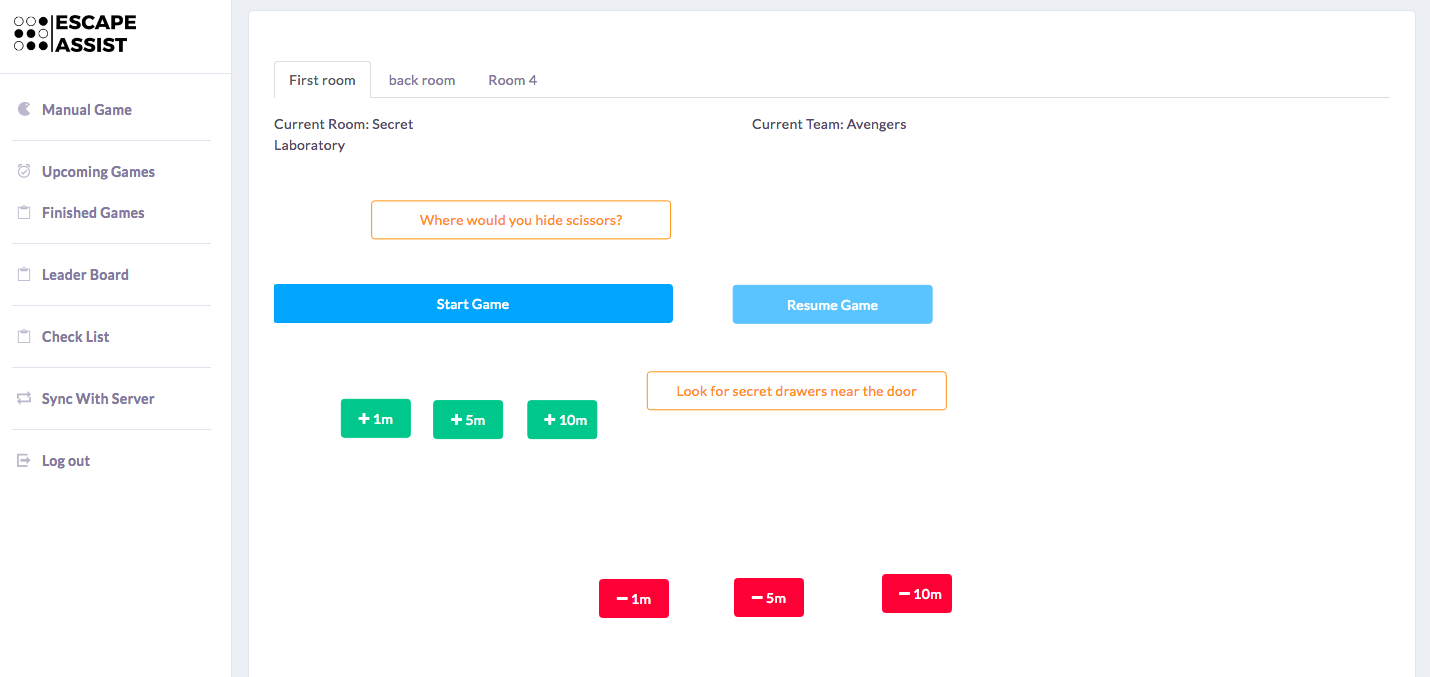
Once everyone has signed in, send them into the room. When you are ready, click the “Start Game” button. You will be prompted to confirm your action (this is the case with each action so hints etc. are not sent by mistake).
In the game controller area you can start/pause the timer, and add or take away increments of time. You can also send pre-loaded or manually typed-in hints. Finally, you can play/display pre-loaded media (videos, photos, sounds, etc. you put in during the game manager setup).
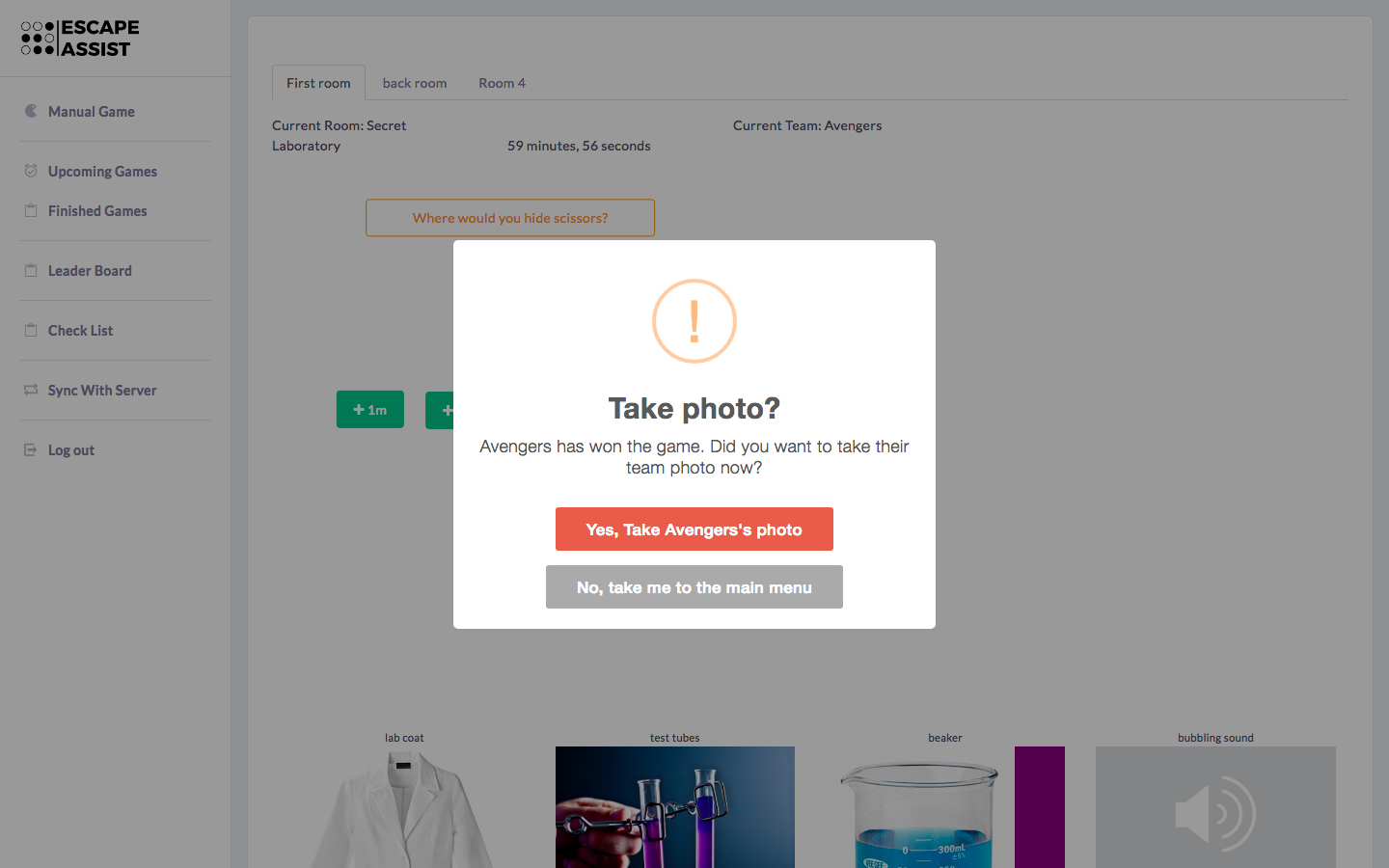
Press the “Won Game” button when the team escapes and their time will be automatically recorded and listed on the Leader Board. If the players lose the game ends on its own and we record the loss data. Either way, the game will appear in the Finished Games tab. Your next step is to take a team photo! The team photo with escape time is automatically added to the Leader Board. Also, when you hit “Save Photo” you can use our Autopost feature to email it to players and post it to social media outlets.